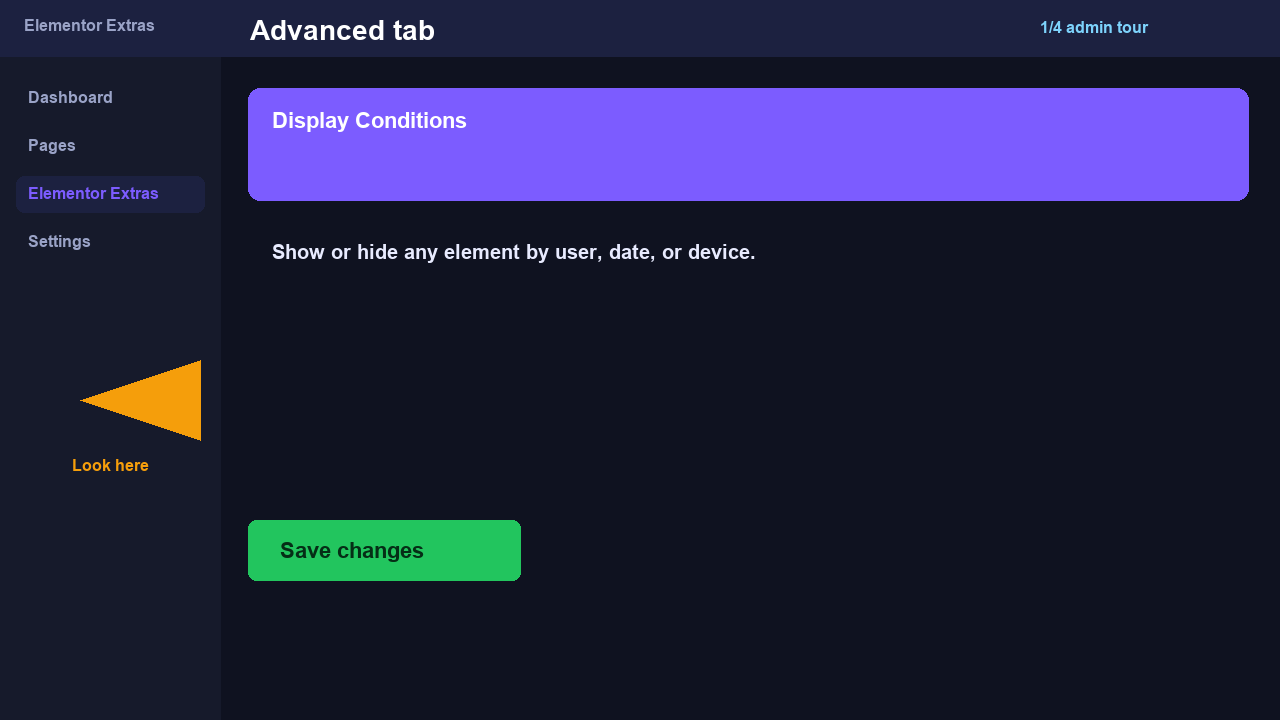
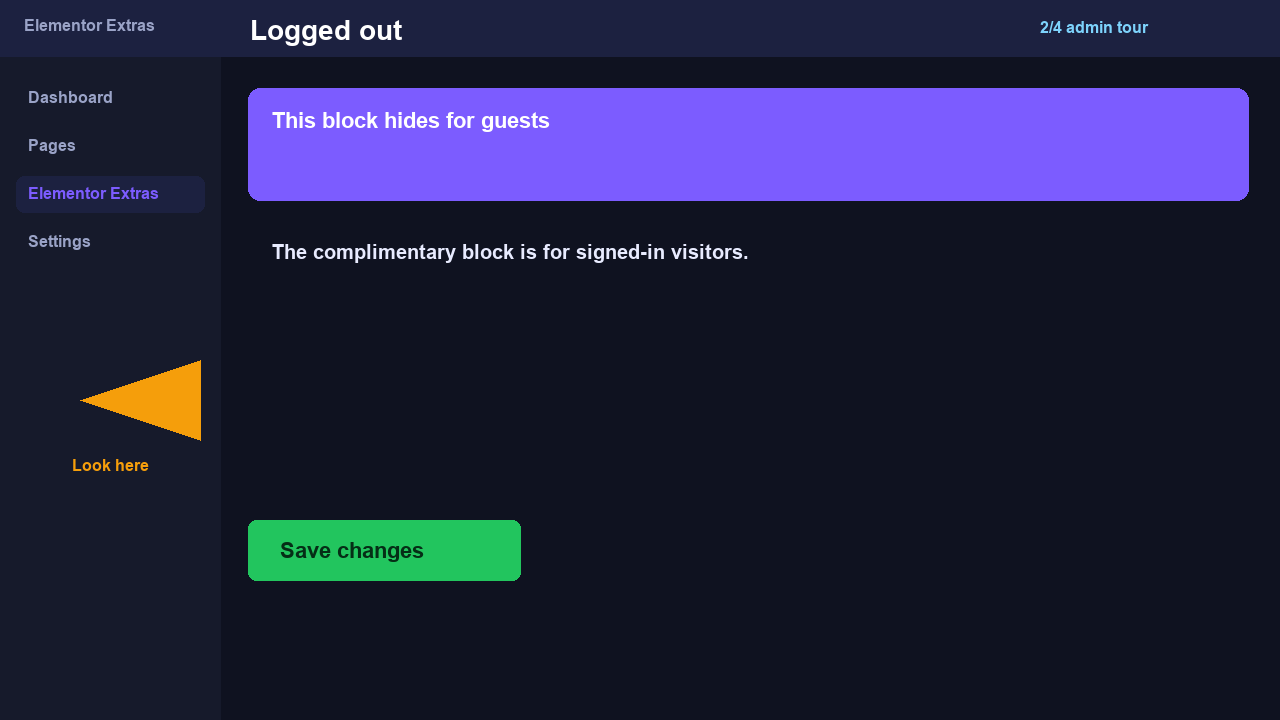
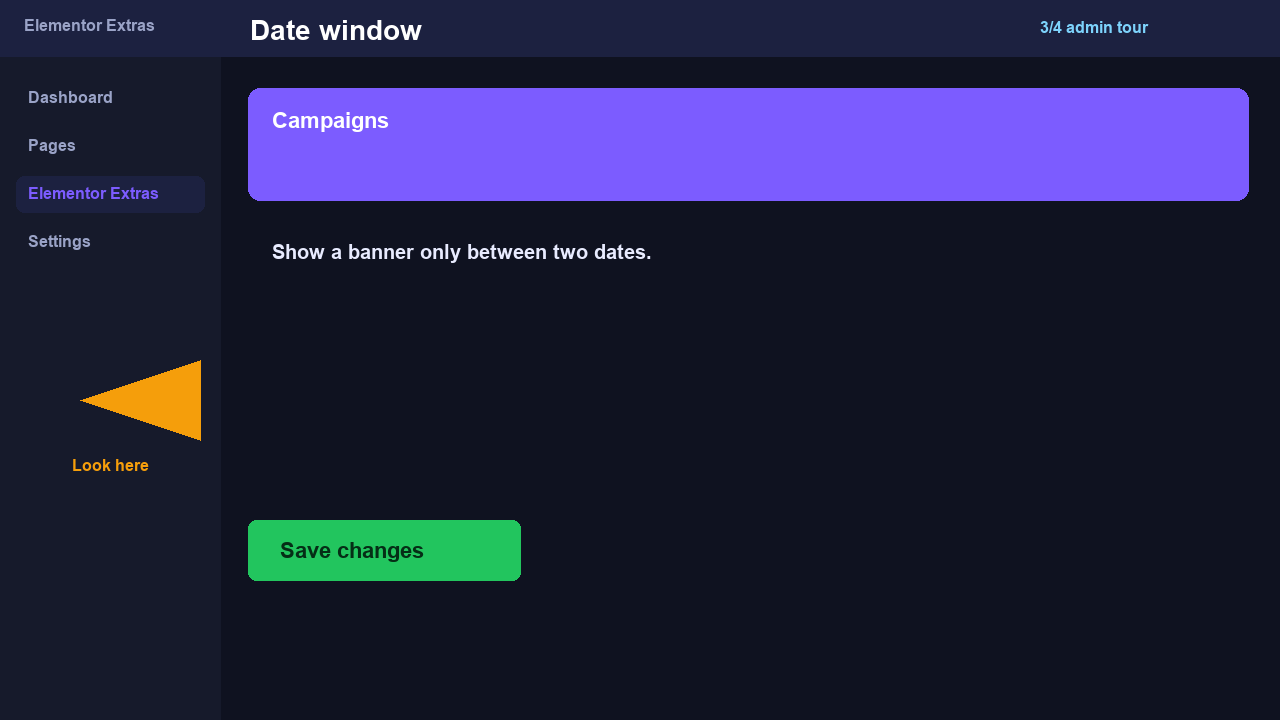
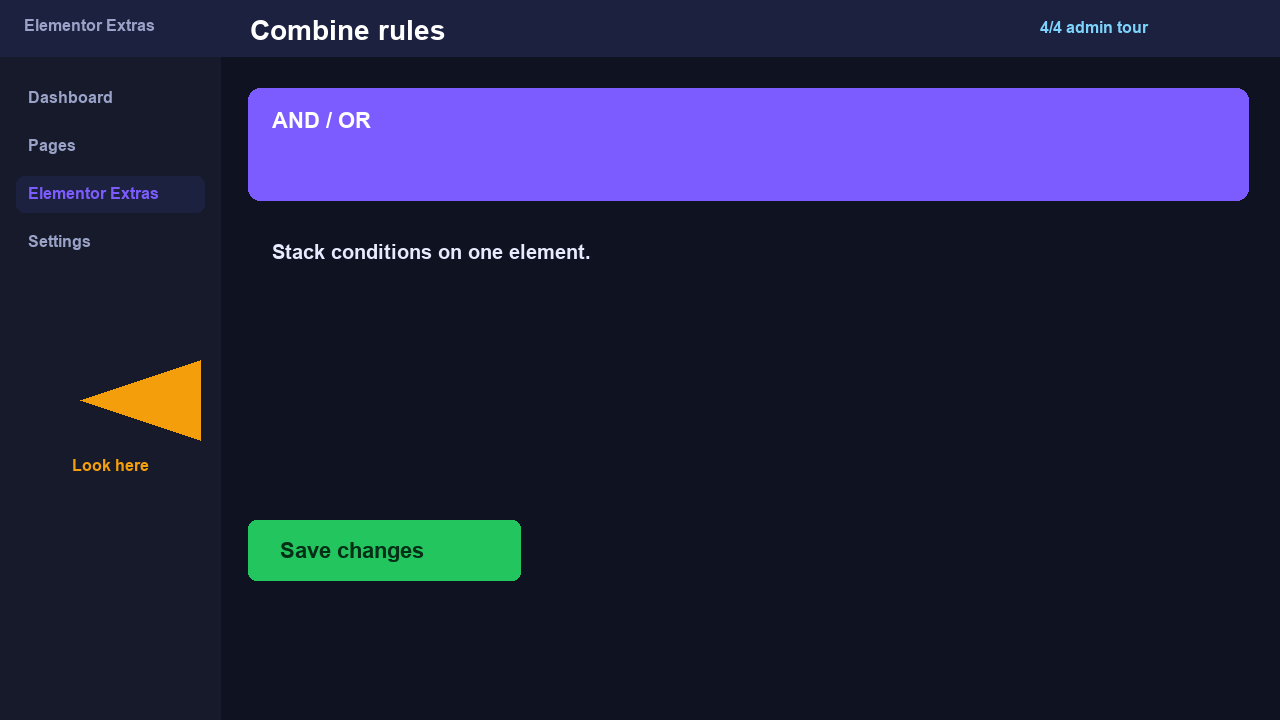
Select any element in Elementor and configure Display Conditions in the LandTech Extras extension panel. This demo page explains the workflow — conditions apply to the element you edit.
How to implement
Open Elementor and select a section, column, or widget to extend with Display Conditions.
Find the LandTech Extras extension tab in the panel (under Advanced or layout).
Enable the effect and tune motion, offset, or visibility settings.
Update and compare before/after on the frontend.
Live demo
The second heading is for guests. Sign in to hide it.
Advanced tab stills.
Always visible — Display Conditions are off on this heading.
Guests see this line. Signed-in visitors do not.
The second heading is meant for logged-out visitors. Sign in to hide it. Viewport Conditions on the sibling page swap by width instead.